
Docs
Quick start
Install, configure, and validate Agentia Headless to begin delivering Salesforce changes from your preferred development environment.
1.Prerequisites
System Requirements
- Node.js 18.0.0 or newer
- npm
- Git
Copado Licensing and Access Requirements
You need a Copado account with an active license (CI/CD, Testing, or AI Context Hub) and your Copado product configured and ready to use.
2.Installation
Install the Agentia CLI
npm install -g @copado/agentia-cliInstall the Agentia IDE Extension
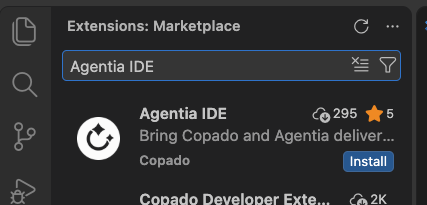
In VS Code or Cursor, go to the Extensions tab, look for Agentia and click Install.
3.Initial Configuration
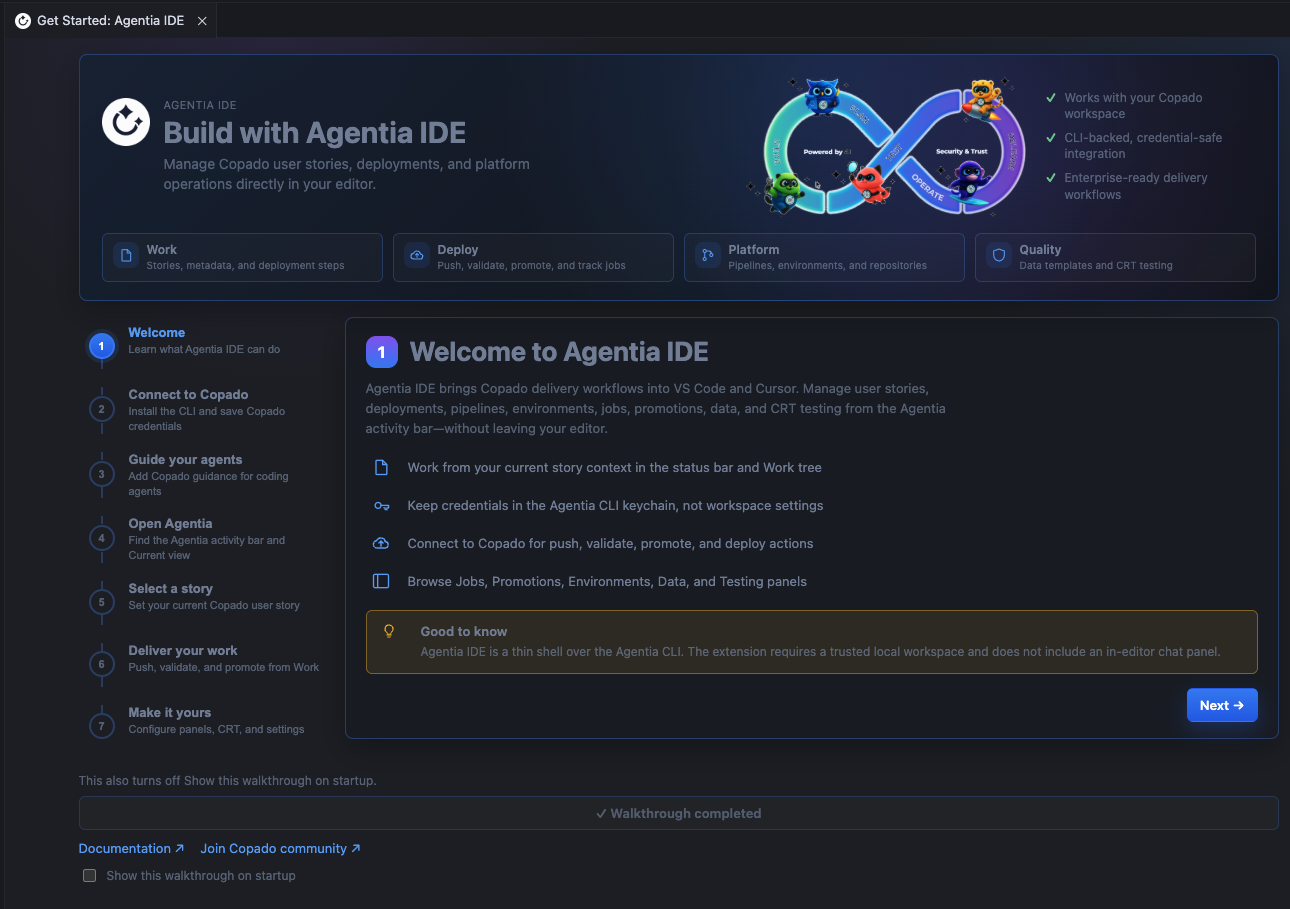
The first time you install Agentia IDE, a getting-started view guides you through a similar process: authentication, Skills, and what comes next.
4.Verify Installation
Verify CLI installation and authentication
agentia --version
agentia auth get
Expected: a version line such as @copado/agentia-cli/<version>, then each product (CICD, AI, CRT, Pipelines Advanced) marked set or not set. Keys stay masked.
Validate Copado connectivity
agentia cicd project listExpected: your Copado projects. An auth or network error means the key, region, or connection is not ready.
5.Getting Started
1. Your First User Story
Pick or create a User Story in Copado and start working on it from your development environment.
1.1 Find an existing story
agentia cicd work list --assigned-to-me
agentia cicd work list --status "In Progress" --project-name MyProject
agentia cicd work get US-0001
Note the story Id (
a0S...) or name (US-0001). You can use either in later commands.1.2 Or create a new story
agentia cicd work create \
  --title "Add SLA field to Account" \
  --project <project-id> \
  --team <team-id> \
  --assignee <user-id> \
  --acceptance-criteria "Account page shows SLA__c -> open an Account -> field is visible"
Tips:
-
Save your project, team, and assignee once so you can omit them next time:
agentia cicd project default set --project <project> --team <team> --assign-me -
--acceptance-criteriamust be under 255 characters. -
Add
--jsonto any command for machine-readable output.
1.3 Start working on the story
agentia cicd work set US-0001This command:
- Reads the story and the pipeline settings.
- Fetches the base branch and any existing remote feature branch.
- Creates or checks out
feature/<story-name>. - Records the story as your active story, so later commands need no story argument.
Before you run it: your tracked working tree must be clean.
If you see a warning about a missing pipeline or credential, fix the story's pipeline or source credential in Copado (or with
agentia cicd work update --source-credential ...) before you publish or submit.You can switch the base branch with
--base-branch <branch>. Runagentia cicd work set --noneto clear the active story.1.4 (Optional) Move the story forward
agentia cicd work update US-0001 --status "In Progress"Checkpoint:
git branch --show-currentprintsfeature/<story-name>.
2. Develop and Validate Salesforce Changes Locally
Build your changes with your coding agent and validate them against your Salesforce org.
2.1 Build with your coding agent
Open the repository in your agent and describe the change. For example: "Add an
SLA__cpicklist on Account and a Apex trigger that defaults it. Include tests."To help the agent, you can:
- Ask it to read org metadata first:
agentia cicd metadata explore(see--help) oragentia cicd metadata list. - Point it to the active story:
agentia cicd work statusandagentia cicd work get.
2.2 Deploy against your Dev org
Use standard Salesforce CLI commands, or the agent's Salesforce tooling.
# Push your source changes to the Dev org
sf project deploy start --target-org my-dev
2.3 Run local quality gates
# Run the project's quality gates; if none exist, it runs the stock Apex sample
agentia cicd work test

# Faster: run only specific Apex test classes
agentia cicd work test --apex-test-classes=AccountSlaTest,AccountServiceTest

# Re-run only the classes that failed last time
agentia cicd work test --rerun-failed-apex-tests
Quality gates are scripts at the project root:
.agentia_quality_gates.sh(macOS/Linux) or.agentia_quality_gates.cmd(Windows).You can also run Apex tests directly:
agentia cicd work test apex -t AccountSlaTestFailed runs are saved in
.agentia/apex.tests.<story>.jsonand removed after a passing run.2.4 Commit locally and register the commit
Commit with Git, then register the commit in Copado with Agentia.
git add -A
git commit -m "US-0001 Add SLA field and defaulting trigger"

# Optional preview: nothing is pushed or registered
agentia cicd work publish --dry-run

# Push the feature branch and register the commits on the story
agentia cicd work publish
work publishdoes the following:- Pushes
feature/<story-name>. - Applies Copado environment-variable and YAML replacements.
- Registers the commits and the changed metadata on the story.
- Merges the feature branch into the Dev environment branch.
A plain
git pushdoes not register anything in Copado. Always finish withwork publish.If a profile or permission set changes in a way that automatic nested detection misses, add one of these:
agentia cicd work publish --permissions CustomField:Account.SLA__c
agentia cicd work publish --full-metadata PermissionSet:Sales_Onboarding
Notes:
- The working tree must be clean before you publish.
No changes to publishmeans there are no new commits since the base branch.
Checkpoint: tests pass,
git statusis clean, andwork publishfinishes without errors.
3. Commit and Promote Changes Through the Pipeline
3.1 Submit for validation
agentia cicd work submitSubmit does the following:
- Runs local quality gates (skip with
--skip-local-tests). - Pushes and registers any unpublished commits.
- Starts a Copado validation against the next environment.
- Opens the merge-request page (skip with
--skip-pull-request).
3.2 Check job status
Validation runs asynchronously.
agentia cicd work statusIf a job fails, fix the issue,
git commit, runagentia cicd work publish, thenagentia cicd work submitagain.3.3 Handle "stories behind" warnings
If submit warns that other stories are ahead in the destination environment, sync first.
agentia cicd work environment-sync --destination-environment dev1

# If it stops on merge conflicts: resolve the files, then continue (or abort)
agentia cicd work environment-sync --continue
agentia cicd work environment-sync --abort
3.4 Promote and deploy
When validation is green and your merge request is approved:
agentia cicd work submit --doneThis promotes the story and deploys it to the next environment in the pipeline.
agentia cicd work doneis an alias.Confirm the result:
agentia cicd work status
agentia cicd promotion list
agentia cicd work open        # open the story in Copado
If the promotion has conflicts, use
agentia cicd promotion conflict listandagentia cicd promotion conflict resolve <id>.Checkpoint: the promotion shows
Completed, and the story is in the next pipeline environment.
Cheat sheet
Goal Command Find a story agentia cicd work list --assigned-to-meCreate a story agentia cicd work create --title "..."Start work agentia cicd work set <story>Test locally agentia cicd work testCommit git commit, thenagentia cicd work publishValidate agentia cicd work submitPromote and deploy agentia cicd work submit --doneCheck jobs agentia cicd work statusTroubleshooting
Symptom Fix setfails on a dirty treeCommit or stash tracked changes, then re-run. Warning about no pipeline or credential Fix the story's project, pipeline, or source credential in Copado. No changes to publishCommit your work first, or pass --permissionsor--full-metadata.Submit warns of stories behind Run agentia cicd work environment-sync.Auth errors Run agentia auth get, thenagentia auth set --cicd <key> --region <region>.Do not mix flows
This guide uses the local Git flow. Do not use
agentia cicd cloud commitoragentia cicd cloud promoteon the same story.-
For Copado customers
From install to first commit, right in your IDE
Agentia Headless is available for all Copado solutions. Install the Agentia CLI, connect it to your Copado account once, and run your pipeline from any IDE.
Sign in with Copado
New to Copado? Headless needs a Copado account. Start a free Agentia trial, then come back and install the CLI.
Install the CLI
$npm install -g @copado/agentia-cliMakes the agentia binary available system-wide.
Run the setup wizard
$agentia setupThe wizard guides you through authentication, skills configuration, local quality gates and more.
Companion IDE extensions are available for VS Code and, via Open VSX, for Cursor.